
I recorded a quick video walking through this, but the details are all here, and there’s more in the post than I could fit in the video.
Fields are one of those AutoCAD features I wish more people used. Wiring diagrams, loop diagrams, schematics, junction box drawings, there are so many places in electrical and instrumentation work where the same value shows up five or six times on one sheet. Fields let you type it once and let everything else follow.
What is a Field, and why put one on a loop diagram?
A Field is text that gets its value from somewhere else: another piece of text, a block attribute, a drawing property, even a formula. It still looks and acts like regular text. You can move it, resize it, put it on any layer. The difference is that it doesn’t own its value. It reads it.
On a loop sheet that matters. The instrument tag shows up in the bubble, on the cable callout, at the jbox, at the marshalling terminals and in the title block. If each of those is typed by hand, each one is a chance to get it wrong, and every new loop means hunting them all down again.
Where should the "real" value live?
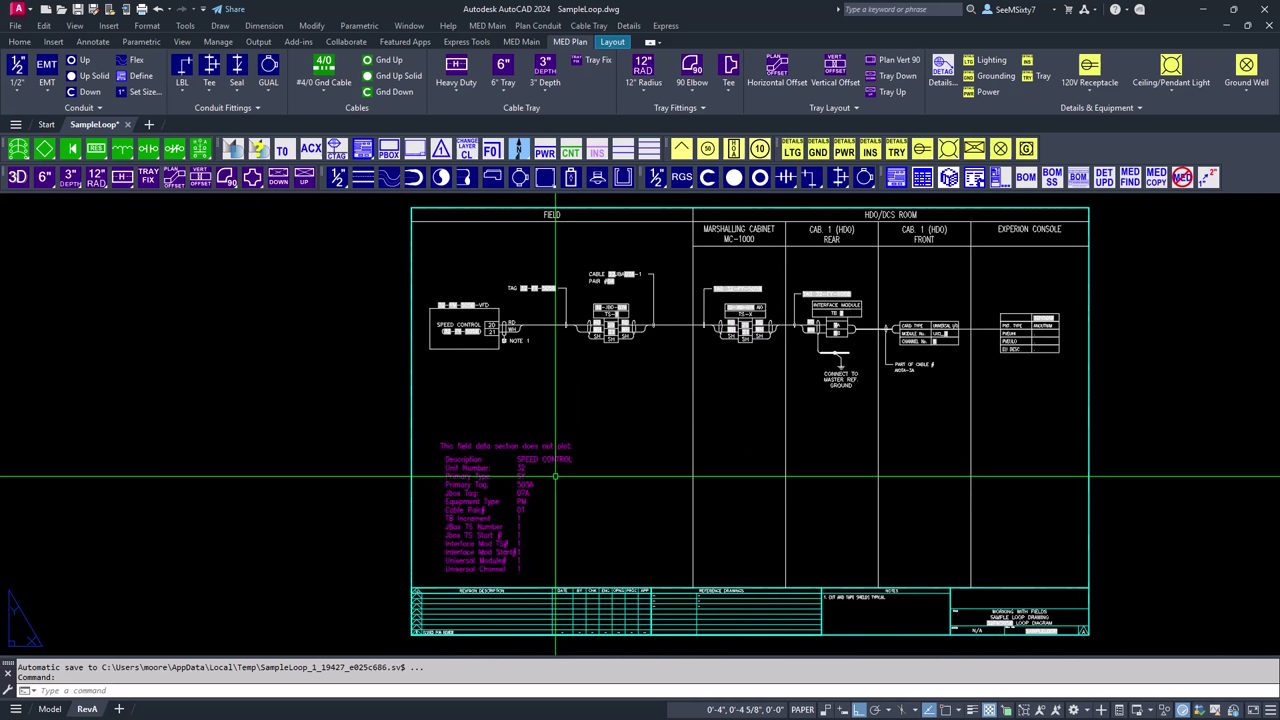
Give every loop one source of truth. I keep a block of controlling values right on the sheet: description, unit number, instrument type and tag, jbox tag, cable pair, terminal strip and start number, I/O module, channel, and a TB increment. They go on a layer that doesn’t plot, but I make them nice and bright so you can actually see them while you work.
And it’s not one-to-one. Any number of Fields can point at the same controlling value. Change the tag once and every spot on the sheet that shows it picks it up.
How do you build an Object Field?
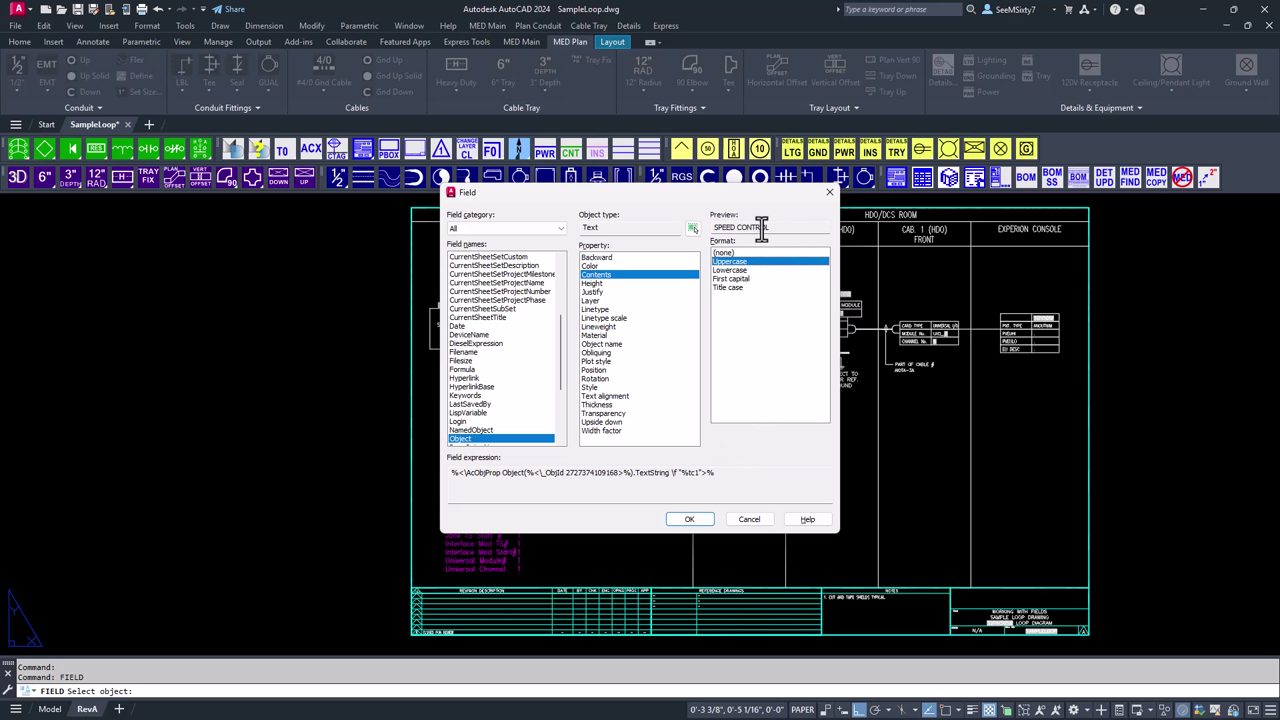
- Type FIELD.
- Leave the category on All and pick Object for the field name.
- Click the Select Object button and pick the controlling text you want to read from.
- Property: Contents. Format: whatever your standard is. I use Uppercase.
- Check the preview. If it shows the value you expected, you grabbed the right object.
- Hit OK and place it as new text, or use the shortcut below.
Can I turn text that’s already there into a Field?
Yes, and this is the trick I use most. Most loop sheets already have the text laid out where you want it. Instead of placing new text and lining it all back up:
- In the FIELD dialog, copy the field expression at the bottom (Ctrl+C or right-click, Copy), then hit Cancel. If you pick OK, AutoCAD thinks you want to place a brand-new piece of text.
- Edit the existing text, select what you want replaced, and paste (Ctrl+V). It keeps its position, style and layer, and now it’s linked.
That works inside MText too, so a line like PT-505B can be two Fields and a hyphen.
Grey background means it’s a Field. If you don’t see the grey, check FIELDDISPLAY (1 shows it, and it never plots either way).
Why didn’t my Field update?
This is the question I get the most. Fields don’t re-evaluate every time you type. When they update is controlled by FIELDEVAL, a bitcode: 1 = open, 2 = save, 4 = plot, 8 = eTransmit, 16 = regen. Add up the ones you want. I set mine to 31 so it covers all of them.
So after you change a controlling value, nothing moves until one of those events happens. Run REGENALL and the sheet catches up. If you only want to touch certain Fields, select them and run UPDATEFIELD instead.
If you have chained links (a Field that points at another Field), run REGENALL more than once. Each pass pushes the value one link further down the chain.
What if the new value doesn’t fit?
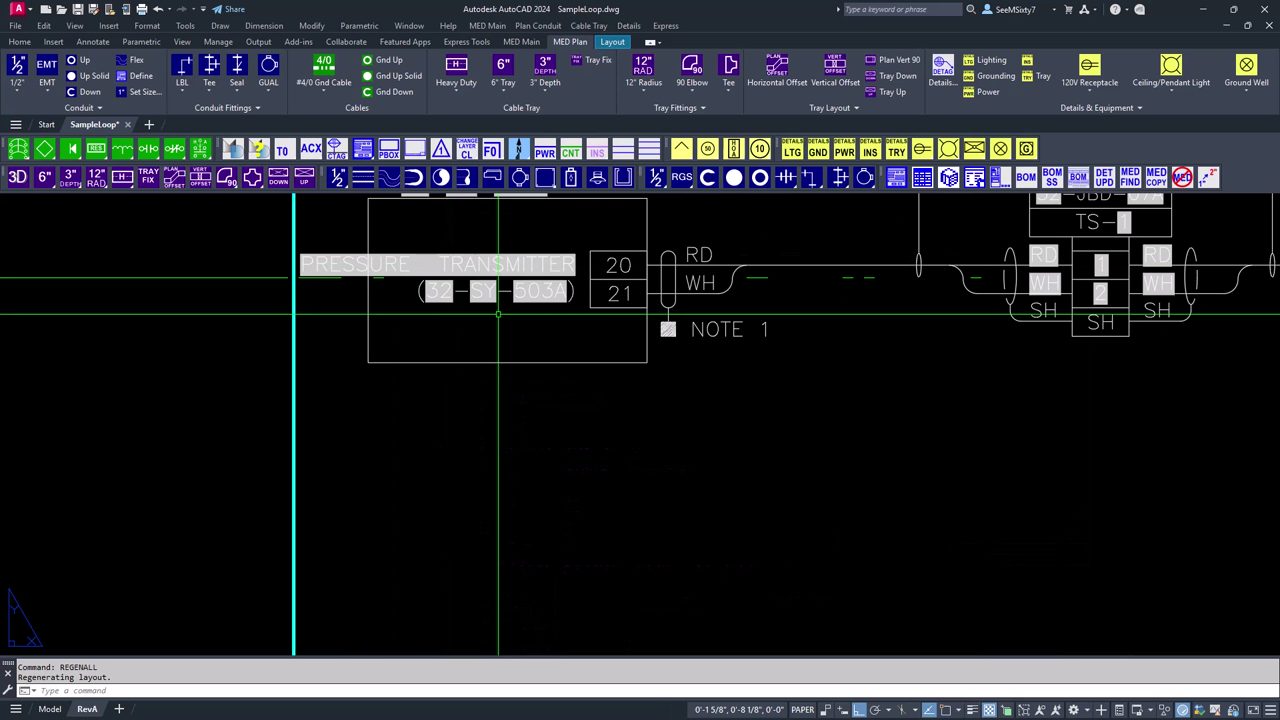
You’ll spot it right off the bat. A short description like SPEED CONTROL becomes PRESSURE TRANSMITTER and suddenly it’s out of its box. A Field is still standard text, so adjust the size, set an MText width, or move it, and the link stays put. Watch for stray spaces in the controlling text too. They come right along into every Field.
So how do you turn one loop into the next one?
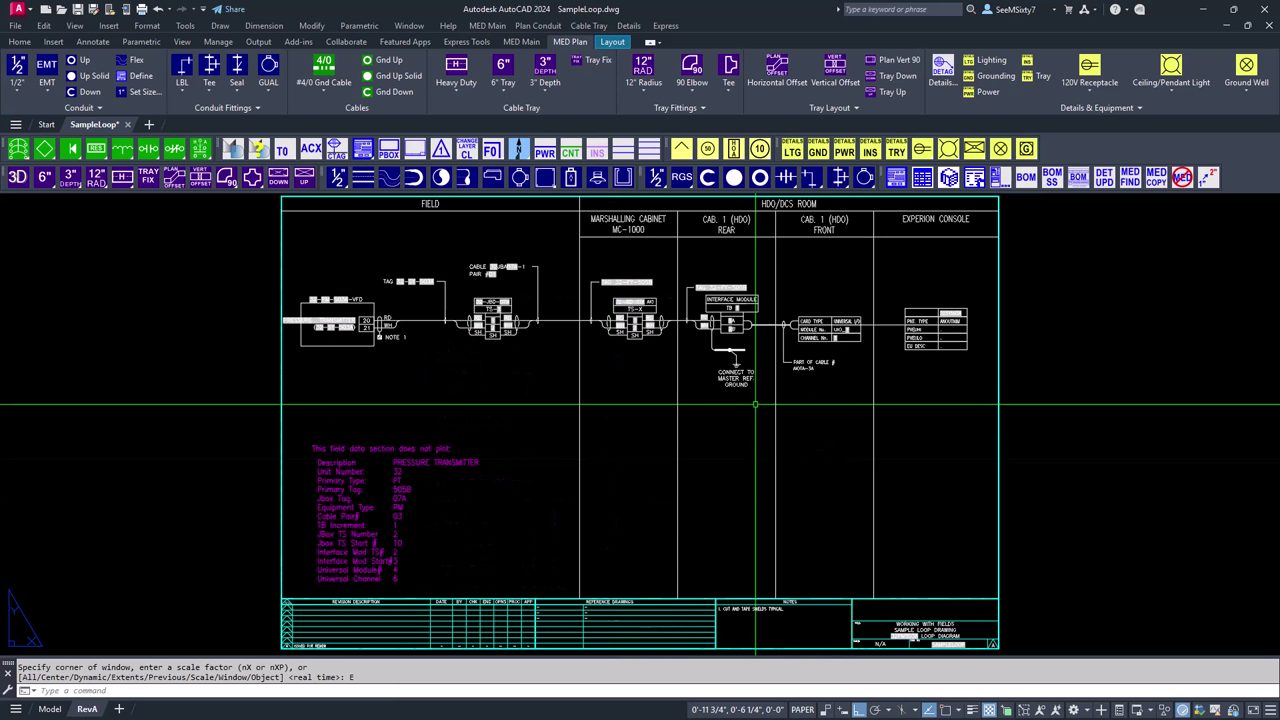
Save As, then go down the controlling values and change only what’s different for this loop. Say the old sheet was a speed switch and the new one is a pressure transmitter: the type changes, the tag changes, maybe it lands on a different cable pair and a different terminal strip. You edit those few values in one place.
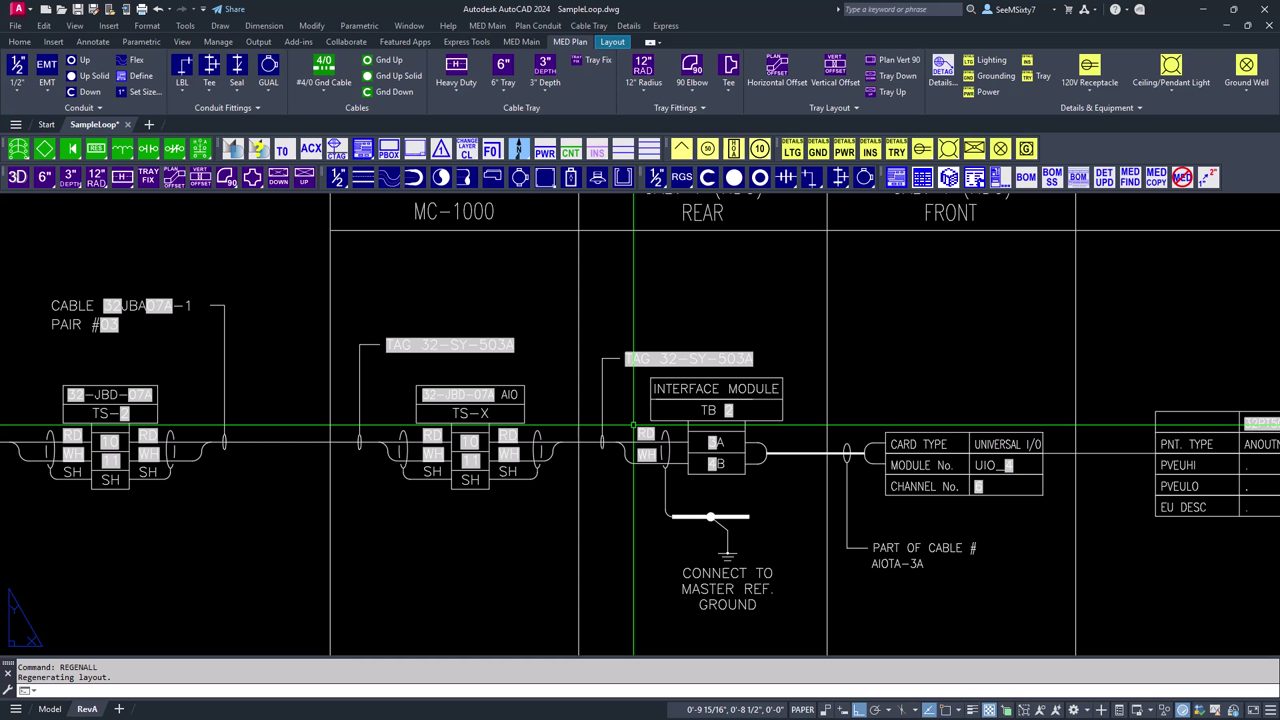
REGENALL a couple of times, nudge anything that no longer fits, and the sheet is done.
Can a Field do math?
This is where it gets fun. I can’t tell you how many times I’ve watched somebody renumber a terminal strip by hand, one terminal at a time, and miss one. Every number after that is wrong. Put a start number and an increment in your controlling values and let a Formula field do the rest:
- Run FIELD at the first terminal number, but pick Field name Formula.
- In the formula box, right-click and choose Insert Field. Pick the terminal strip start text, Object, Contents.
- That’s terminal one, so the formula is just the start value. Set the format to Decimal with 0 precision so you get
10, not10.0000. - For the next terminal, insert the start and the increment with a
+between them, and you’ve got11. - Third terminal is start + (2 × increment), fourth is start + (3 × increment), and so on.
Change the start from 1 to 10, run REGENALL, and the whole strip renumbers: 10, 11, 12, 13. If your standard skips a terminal between pairs, set the increment to 2. The same trick works for cable pairs, module channels and interface module terminals.
A few things to know:
- The formula only sees numbers. If your start text says
TB-10, the math breaks. Keep the prefix in its own text. - Formula fields need the same REGENALL (or UPDATEFIELD) to refresh.
- If a value shows
####, the formula can’t read one of its sources. Usually the source got deleted or has a letter in it.
What about the title block?
The title block can work the same way. A Filename Field for DWG NO means the sheet number follows whatever you Save As. Pick Filename in the FIELD dialog and turn off the path and extension.
I can’t tell you how many times I’ve inherited a loop set where the title block said one loop, the tag bubble said another, and the file name said a third.
GET IT RIGHT before you copy it 200 times
- Check every Field before you clone the sheet. One wrong pick means 200 wrong sheets.
- Use Save As for each new loop instead of copying objects between drawings. Object Fields point at specific objects, and copied Fields can end up pointing back at the old drawing’s objects.
- Keep the controlling values on their no-plot layer and in the same spot on every sheet, so whoever opens the drawing next can find them.
- Set FIELDEVAL to 31 and run REGENALL before you plot or transmit.
Is there a faster way than the FIELD dialog?
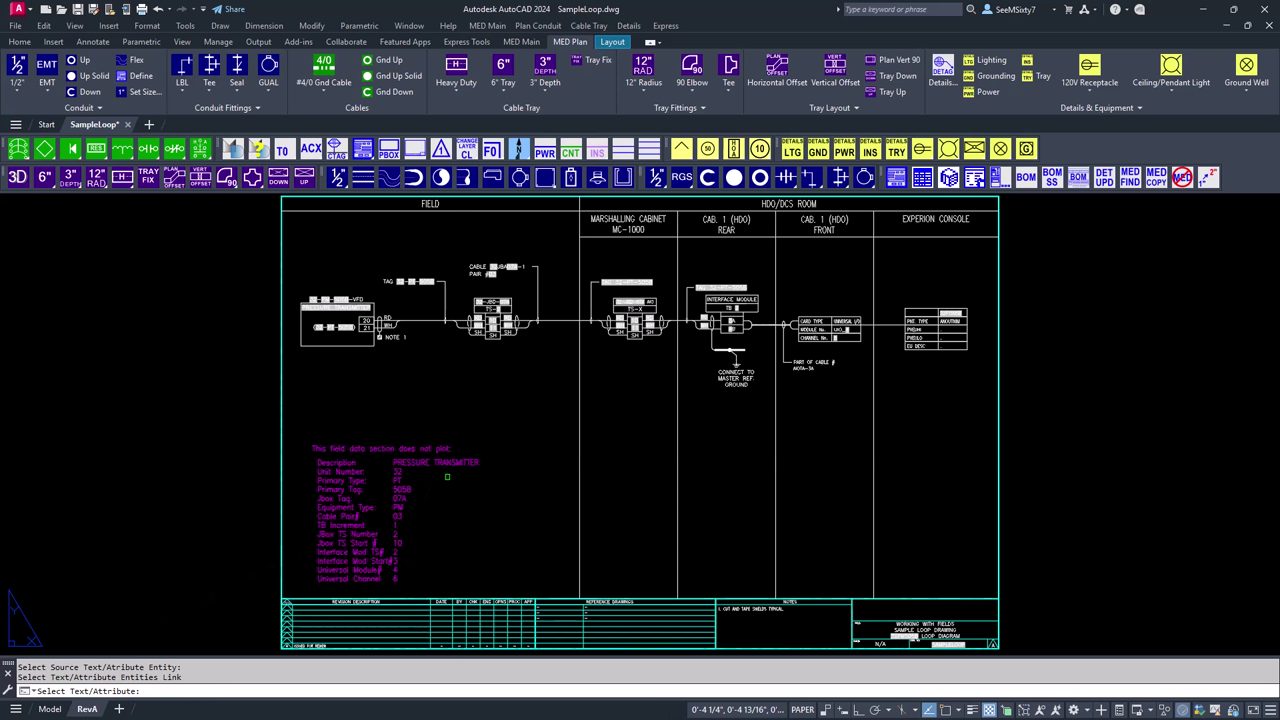
Yes. MED ships with tools for creating links. Run Link Value, select the source text, then pick the text you want linked and hit Enter. It builds the Field for you and shows you what it pasted in. No dialog, no copying expressions. MED is free. Grab it at https://mooredesign.net/download, or see what’s new at https://mooredesign.net/whats-new/.
If you want to see it in action, the video up top runs through a loop sheet start to finish. Let me know how you’re using Fields on your drawings.